Rule-Set Guide
A guide to the advanced Rule-Set feature for pricing your property
- Overview
- Create your first Rule-Set
- Name and Colour
- Nightly Price
- Weekend Nightly Price
- Length Of Stay Discount
- Last Minute / Early Bird Discounts
- Low Occupancy Discount
- NHS discount
- Extra Guest Fee
- Trip Length
- Check-In and Check-Out days
- Adding Rule-Sets to the Calendar
- Editing and Removing Dates
- What Happens if a Holidaymaker chooses dates that go over multiple Rule-Sets?
Rule-Sets are a powerful feature that allows you to create a set of rules that can be applied to your property to automatically adjust the price based on the criteria you set. This can be used to create a flexible pricing strategy that can help you maximise your bookings and revenue. Rule-Sets are linked to your account, not to a particular property, so they can be applied to any of your properties.
To Create your first Rule-Set, go to the prices tab on one of your properties, then click on the
Rule-Sets tab.
From here you can see a button called "Create New Rule-Set", click that button.

When you press the "Create New Rule-Set" button, you will see a pop-up form. This is the form
you will use to create your
Rule-Set.

Name and Colour
At the top of the form you will see a field to give you Rule-Set a name and a colour.
The name is just for your reference. The colour is used to help you identify the Rule-Set on the
calendar.
The name field is required and can only be a maximum of 13 characters.

Nightly Price
Next you will see a pricing heading. The first item to appear in the pricing section is the
"Nightly Price".
When clicking on the Nightly price section, you will see: A field for a percentage, a radio
button to switch between
"increase" and "decrease".
These will allow you to increase or decrease the price by a percentage.
This will work on the: Base price, weekend price and custom prices.
The increase or decrease happens before any discount and stacks with them.

Weekend Nightly Price
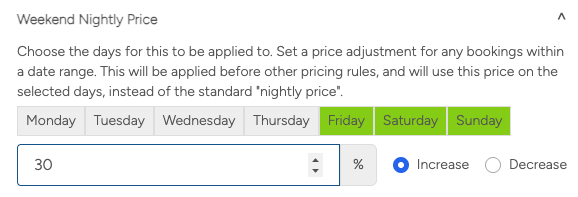
Next you will see "Weekend Nightly Price".
When clicking on the weekend Nightly price section, you will see: A field for a percentage, a
radio button to switch between
"increase" and "decrease", and "day" buttons for which days to apply increase or decrease to.
The days selected will not use Weekend Nightly Price INSTEAD of Nightly price.
Length Of Stay Discount
The third item to appear in the pricing section is the "Length Of Stay" discounts item.
This will allow you to set multiple discounts based on the minimum length of stay. You do this
by using the dropdown to select
the nights and then the percentage field to give it a discount.
If you have ANY length of stay discounts in your Rule-Set, it will override ALL of the length of
stay discounts set on the
property (for the dates you apply the Rule-Set to).
For instance, if your main property has a 10% discount for a 7-night stay, but your Rule-Set has
a 5% discount for a 2 night
stay, the property discount will NOT be applied on the dates the Rule-Set is applied.
You can remove any of the discounts by clicking the red "Remove" button.

If you wish to remove the property's length-of-stay discounts for the specified dates, you can
do so by setting a single
length-of-stay discount to 0% in the Rule Set.

Last Minute / Early Bird Discounts
The next two items are Last Minute and Early Bird discounts. These discounts are based on the
number of days/months before the
booking date.
When you open these discounts, you will see a "Add Last-Minute Discount" or "Add Early-Bird
Discount" button.

When you click on the "Add Last-Minute Discount" or "Add Early-Bird Discount" button, you will
see a form to set the discount.
There are two fields, one to set the discount percentage and the other to set the number of days
/ months before the booking
date.
Having a Last Minute or Early Bird discount in your Rule-Set will override the property's Last
Minute or Early Bird discount
for the dates you apply the Rule-Set to.

If your goal is to remove the property's Last Minute or Early Bird discounts for the specified
dates, you can do so by setting
the Last Minute or Early Bird discount to 0% in the Rule Set.

Low Occupancy Discount
The next item to appear in the pricing section is the "Low Occupancy" discount item.
This will allow you to set a discount based on the number of guests staying.
When you open the Low Occupancy discount, you will see a "Add Low Occupancy Discount" button.
Clicking on it will will show a form with two inputs. "Below Guest Number". In order to receive
the discount, the number of
guests staying must be below this number.
The second input is the "Discount Percentage", this determines the percentage of the discount.
Having any Low Occupancy discounts in your Rule-Set will override the property's Low Occupancy
discount for the dates you
apply the Rule-Set to.
In addition, it will override the extra guest fee for any stay that includes a rule-set with
a Low Occupancy Discount
applied.

If your goal is to remove the property's Low Occupancy discount for the specified dates, you can
do so by setting the Low
Occupancy discount to 0% in the Rule Set.

NHS Discount
The NHS discount is the last item to appear in the pricing section. This will allow you to set a
discount for NHS workers.
When you open the NHS discount, you will see a "Add NHS Discount" button. This will show a form
with the discount percentage
you wish to give.
Having an NHS discount in your Rule-Set will override the property's NHS discount for the dates
you apply the Rule-Set to.
If your goal is to remove the property's NHS discount for the specified dates, you can do so by
setting the NHS discount to 0%
in the Rule Set.

Extra Guest Fee
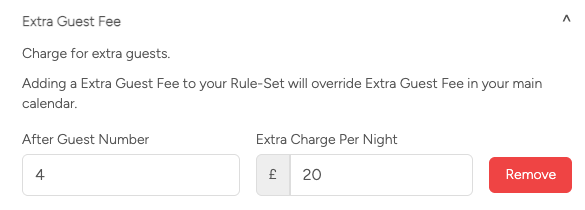
The extra guest fee allows to to charge X amount for each guest over the base number of
guests you select. This will take priority over extra guest fees and low occupancy discounts
set on the main calendar.
If your goal is to remove the property's Extra Guest fee for the specified dates, you can do
so by setting the charge to 0 and guest number to 1 discount to 0%
in the Rule Set.
Trip Length
Next you will see the availability heading. The first item to appear in the availability section
is the "Trip Length".
When clicking on the trip length section, It will open up the minimum and maximum trip length
items.
There are two buttons: "Add minimum stay" and "Add maximum stay".
Clicking on these buttons will open a form to set the minimum or maximum trip length.
These will override the property's minimum and maximum trip length for the dates you apply the
Rule-Set to.

Check-In and Check-Out days
The next item to appear in the availability section is the "Check-In and Check-Out days".
You will see two buttons "Add Check-In Restrictions" and "Add Check-Out Restrictions".

When you click on one, you will see seven "day" buttons. Clicking these buttons will turn the
days red. This will restrict the
check-in or check-out for those days.
This will override the property's check-in and check-out restriction days for the dates you
apply the Rule-Set to.
For instance, in the picture below, guests will not be able to check-in on a Saturday or Sunday.

If your main calendar has restricted days and your goal is to open them all, simply click the
"Add Check-In Restrictions" or
"Add Check-Out Restrictions" button and leave all days unselected.

Clicking Apply
On the Rule-Set tab, after you have created some Rule-Sets, you will see them on a list.
At the bottom of each Rule-Set, there are three buttons: Apply, Edit and Delete.
Edit will bring up an editing screen and allow you to change the Rule-Set.
Delete will delete the Rule-Set and remove it from all of your properties.

Clicking on the "Apply" button will bring up a date-picker screen, this is where you can
select the dates you want the
Rule-Set to apply to.

Once applied, you will see the Rule-Set listed on the calendar.
It will also give the adjusted price for the "Nightly Rate", if one was applied for the
Rule-Set.

Dragging And Selecting
The second way to apply a Rule-Set is by dragging and selecting the date on the calendar.
Then use the "Apply Rule-Set" drop-down to select the Rule-Set you want to apply.

Editing and Removing Dates
Once you have applied a Rule-Set to the calendar, you will notice an extra section on the
Rule-Set tab, with the heading
"View Rule-Sets applied to Dates". This contains a table with the dates that are linked to
any Rule-Sets. You can show
specific years using the drop-down.
By default it will show the current year and will not show past dates. In order to show past
dates, click the "Show Past
Dates" check box.

If you click on any of the rows on the table, it will allow you to: Edit the dates, Change
the Rule-Set, or Remove the
Rule-Set.

Drag And Remove/Change
A second way to remove or change a Rule-Set, is to drag across the dates with the Rule-Set
applied.
Then, in the "Apply Rule-Set" drop-down, select "Remove Rule-Set", or choose a different
Rule-Set.

- The minimum nights stay will be taken from the Rule-Set (or main calendar) with the highest number of nights.
- The maximum nights stay will be taken from the Rule-Set (or main calendar) with the lowest number of nights.
- The price and highest discount will be done on a per-night basis.
- The Early Bird "months before" will be taken from the Rule-Set (or main calendar) with the highest number of months. The discount however, will be done on a per-night basis.
- The Last Minute "days before" will be taken from the Rule-Set (or main calendar) with the lowest number of days. The discount however, will be done on a per-night basis.
- The Check-In restriction date will be take from the Rule-Set (or main calendar) from whatever the guests chosen check-in date is.
- The Check-Out restriction date will be take from the Rule-Set (or main calendar) from whatever the guests chosen check-out date is.
- If the main calendar has an "Extra Guest Fee", and a Rule-Set with a "Low Occupancy Discount" is applied on any day, the Extra Guest Fee will be ignored.
- If the main calendar has an "Low Occupancy Discount", and a Rule-Set with a "Extra Guest Fee" is applied on any day, Low Occupancy Discount will be ignored.
- If one ruleset has "Low Occupancy Discount" and the other ruleset has "Extra Guest", the Low Occupancy Discount is ignored
- If two or more rulesets have two or more "Extra Guest Fee" charges, the charge will take the one with the highest guest requirement that passes. If both rulesets have the same highest guest requirement, it will take the highest charge. It will only take the Extra Guest Fee from the main calendar if none of the rule-sets extra guest conditions are met.