CSV Guide
- Owner Resources
- Guides
- Csv Guide

A CSV is a simple file that can be created in an app such as Microsoft Excel or Google Sheets. It is a simple way to upload your pricing to your property.
Do you need a CSV?
If you only have prices for 7 nights, and don't have different prices for shorter stays, uploading a CSV may be more complex than required. You can easily set prices for 7-night stays by adding custom prices for your desired date ranges, using your weekly price divided by 7 as the nightly rate. Then set your minimum stay to 7 nights.
Details on custom pricing can be found here: custom prices and setting minimum nights here: minimum nights
Which CSV do you need?
Option 1 - Basic - if you charge the same rate for 3/4 nights, no matter what day of the week they arrive, this is the CSV for you.
Option 2 - Weekend rate - if you charge more for 3/4 nights if the stay is over a weekend, this is the CSV for you.
Create your CSV
First you need to download the CSV template. You can download the basic CSV here: Download Basic CSV Template
Or the weekend rate CSV from here: Download Weekend rate CSV Template
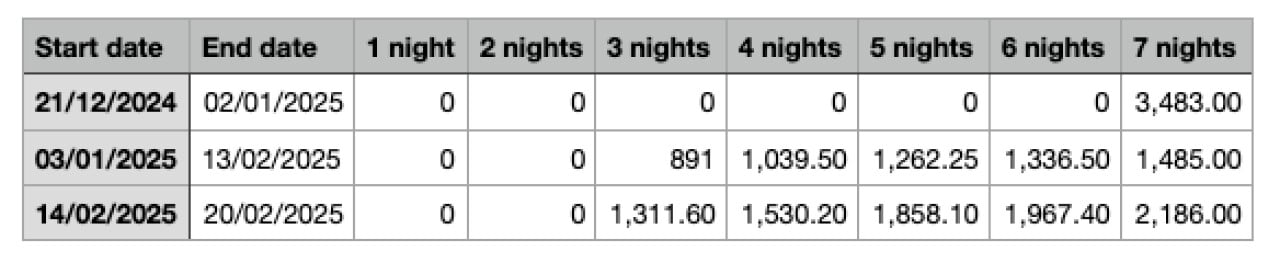
Once you have the template, you can start creating your prices. The Basic template has 9 rows. Each row has a: start date, end date and pricing for each number of nights up to 7 nights. The date format is DD/MM/YYYY e.g. 01/05/2025. Any nights that have no value or a 0 will be ignored — the minimum nights will be set to the earliest night with a value. An example of a valid Basic CSV file can be seen here:
The Weekend rate template has 13 rows. Each row has a: start date, end date, pricing for each weekend night up to 4 nights, pricing for week nights up to 4 nights, and pricing for 5 or 6 nights. The date format is DD/MM/YYYY e.g. 01/05/2025. Any nights that have no value or a 0 will be ignored — the minimum nights will be set to the earliest night with a value. An example of a valid Weekend rate CSV file can be seen here:

Export/Save your CSV
After you have filled in your CSV, please make sure to save it as a CSV, not any other format.
If you are using Excel you can save it by: Go to File > Save As, click Browse, then in the Save As dialog box under the Save as type box, choose the text file format as CSV.
If you are using Numbers you can export it by: clicking the "File" menu, choose "Export To," select "CSV" as the format.
Uploading
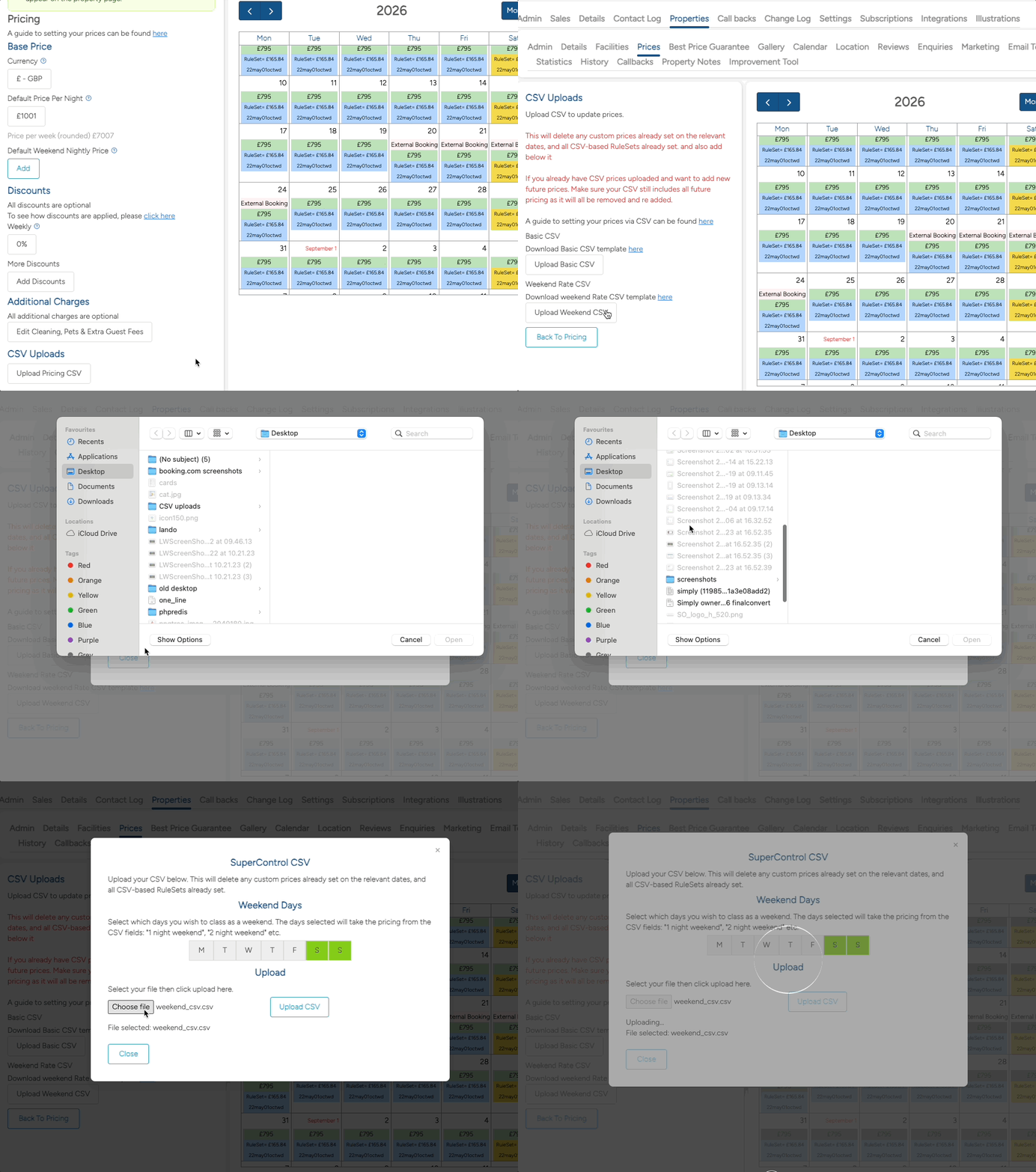
Next it is time to upload your CSV file. You can do this by clicking on Prices on your property. At the bottom of the pricing tab you will see a button that says "Upload Pricing CSV" — click that button. You will now see two more buttons: "Upload Basic CSV" and "Upload Weekend CSV". Click the button that corresponds to the template you used to create your CSV file. If it is a weekend based CSV, you can select the days you class as weekend days. Next click choose file to select your CSV file, once you have selected it click upload.
Editing
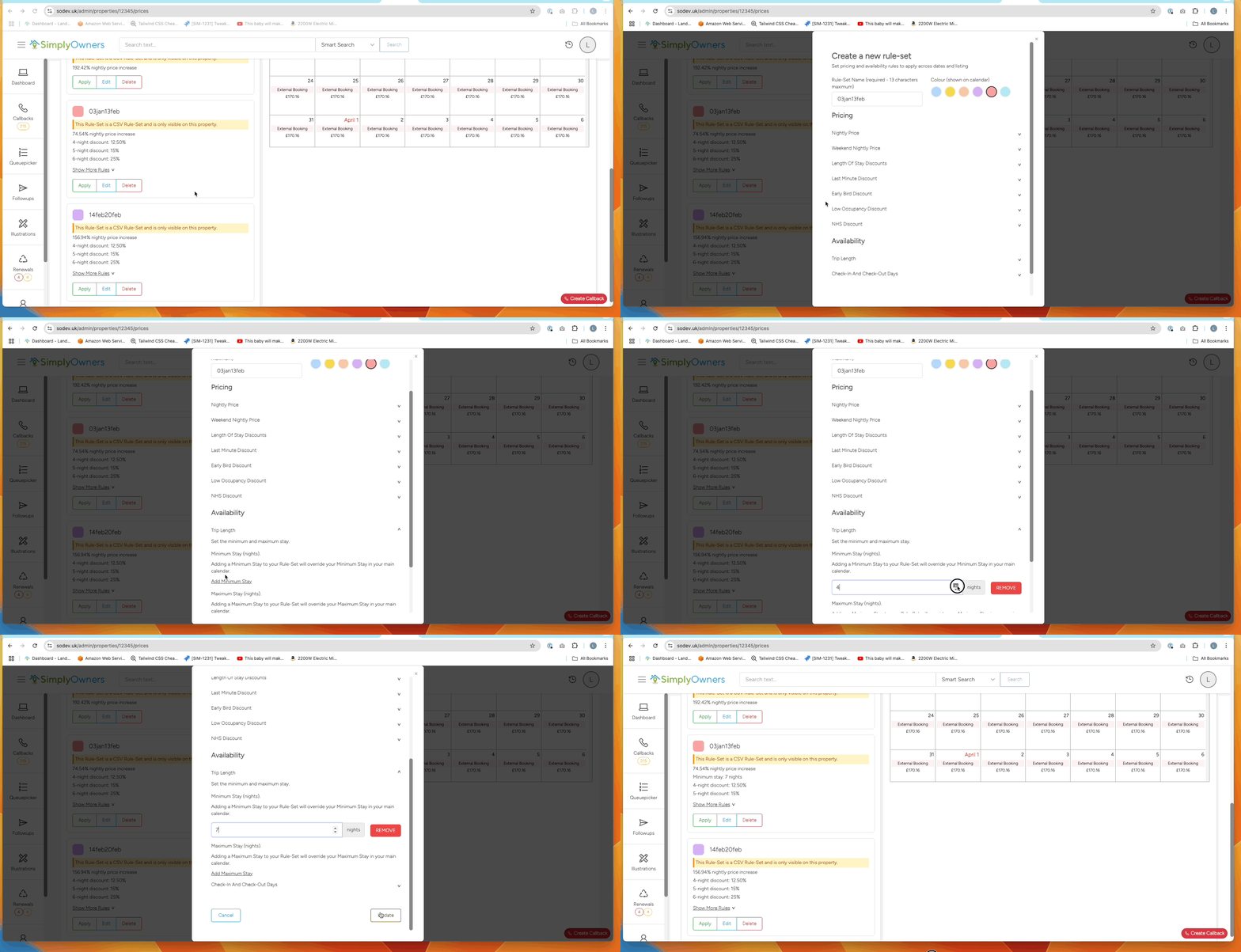
The Rule-Sets created can be edited by clicking on the Rule-Sets tab and then clicking "edit" on the Rule-Set you wish to edit. The Rule-Sets created from the Simply Owners CSV are named from the dates that they represent — for example a Rule-Set that has a start date of "03/01/2025" and end date of "13/02/2025" will have a name of "03jan13feb".
The weekend rulesets are a bit more complicated. They are still distinguished by the dates they represent, but have "we" or "wd" at the end to distinguish between the weekend and weekday rulesets. For example, a weekend ruleset with a start date of "03/01/2025" and end date of "13/02/2025" will have a name of "03jan13febwe" and the corresponding weekday ruleset will have a name of "03jan13febwd".